
The ThermaTouch uses the Android operating system. During the update of versions 7.5 and 7.6, the Android screen lock may be enabled. If any of the following screens appears, follow the directions to return to the TouchSteam application:
Step 1: Android Lock screen
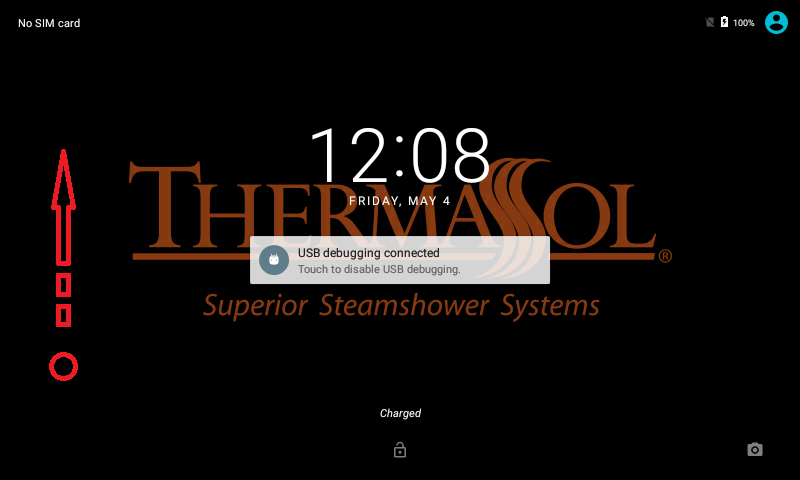
Slide up to unlock the Android lock screen.
Step 2: Time screen
If the TouchSteam application is running, the Time screen will appear
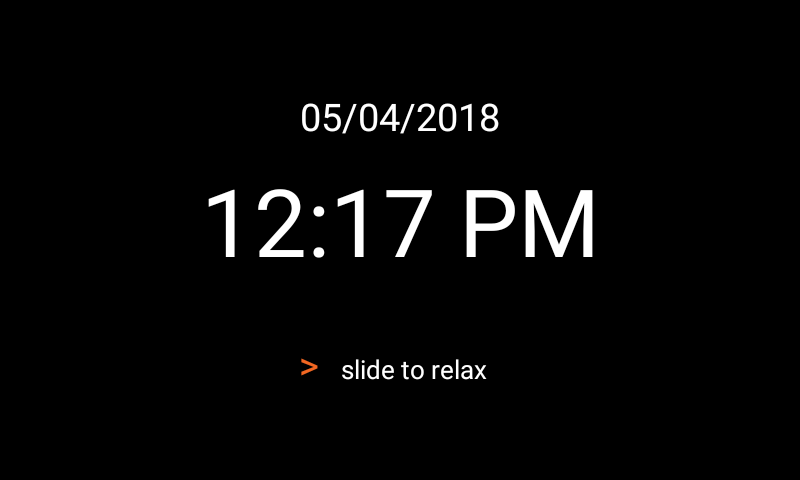
If the screen above appears, Go to Step 13
Otherwise, continue to Step 3
Step 3: Android Home screen
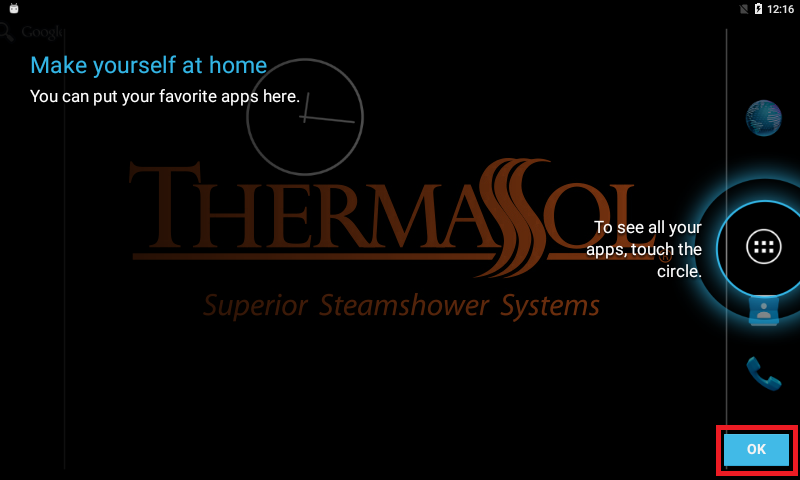
Touch OK button in lower left corner
Step 4: Android Home screen
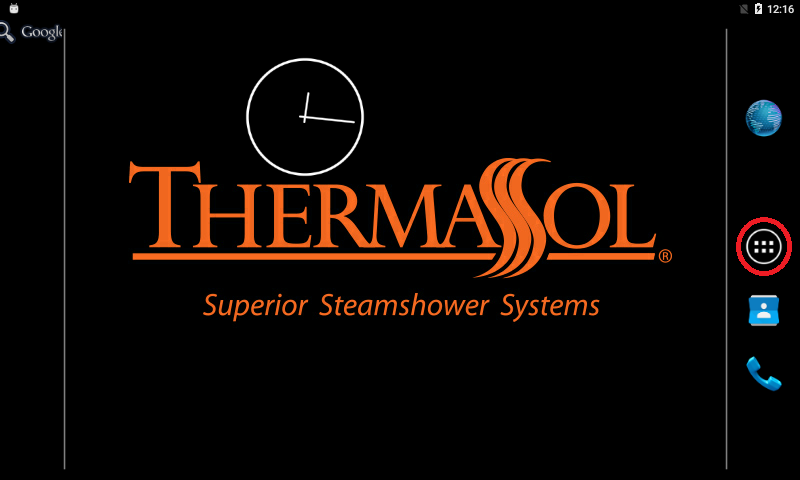
Touch the Apps menu button
Step 5: Android Apps screen
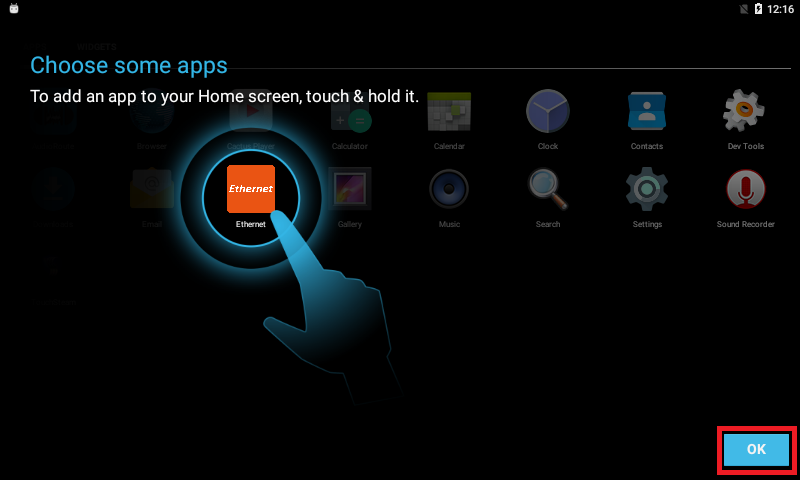
Touch OK button in lower left corner
Step 6: Android Apps screen
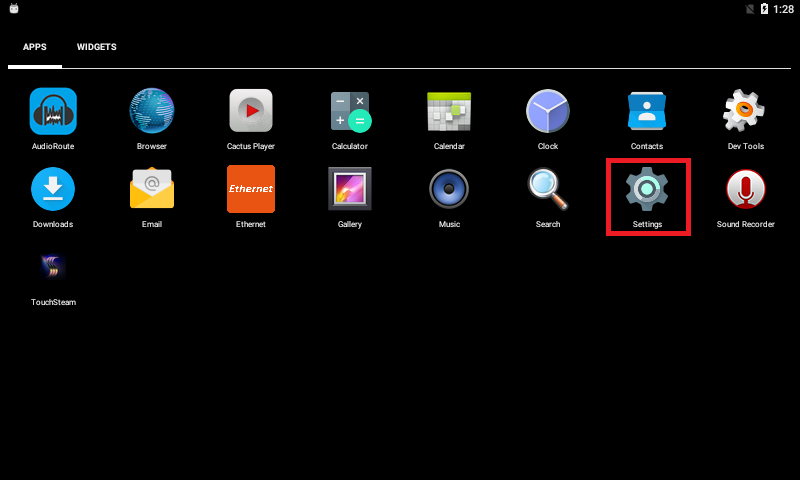
Touch the Settings icon
Step 7: Settings
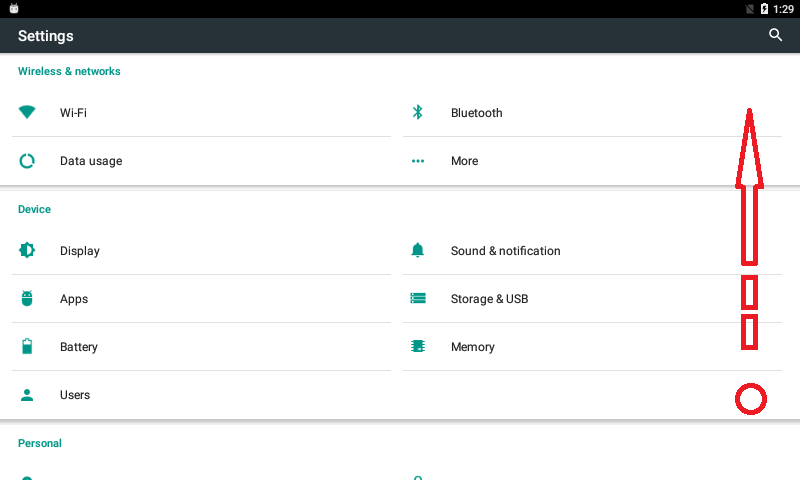
Slide the screen up
Step 8: Settings
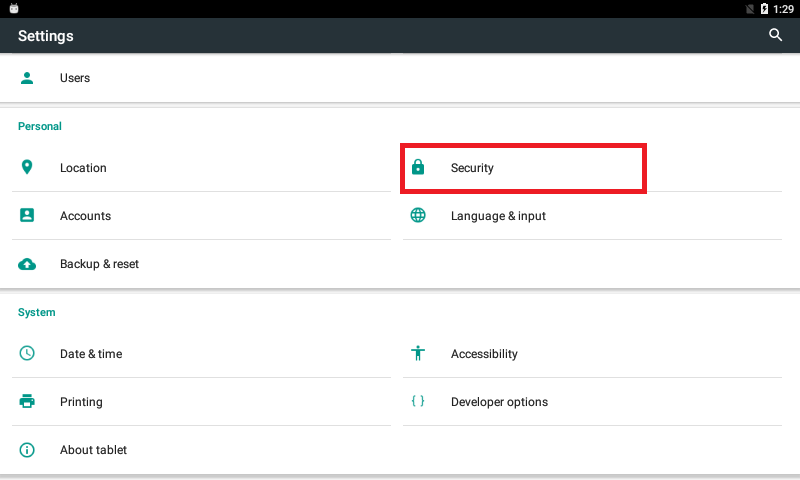
Touch Security
Step 9: Settings
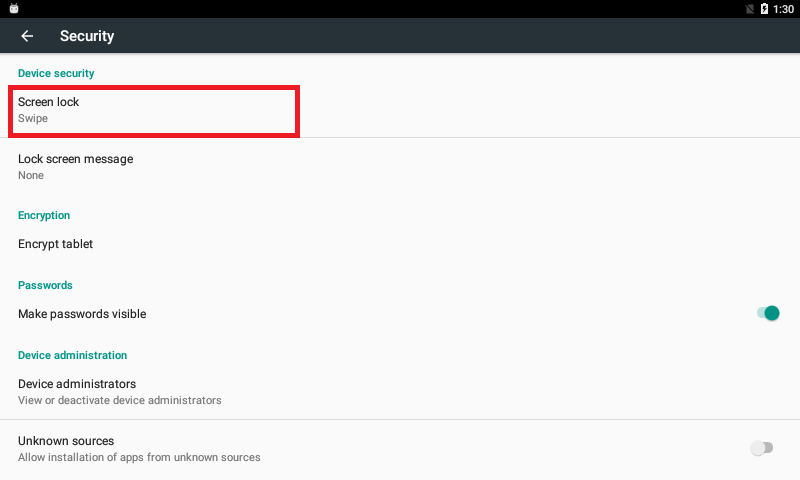
Touch Screen lock
Step 10: Settings
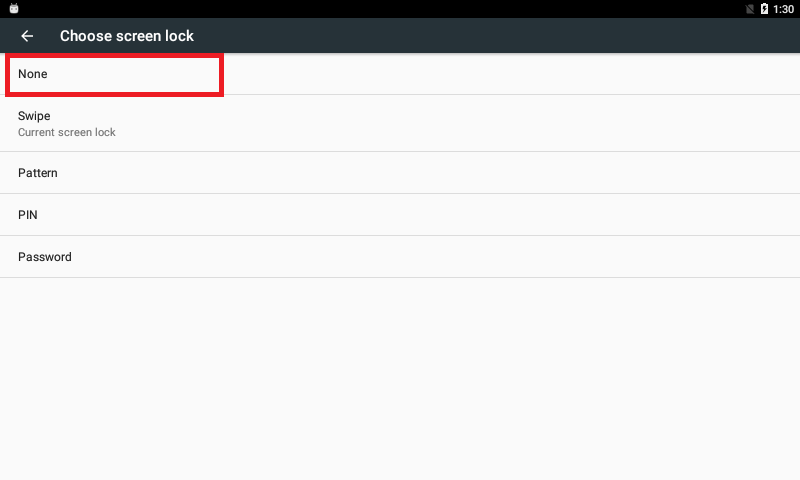
Touch None
Step 11: Settings
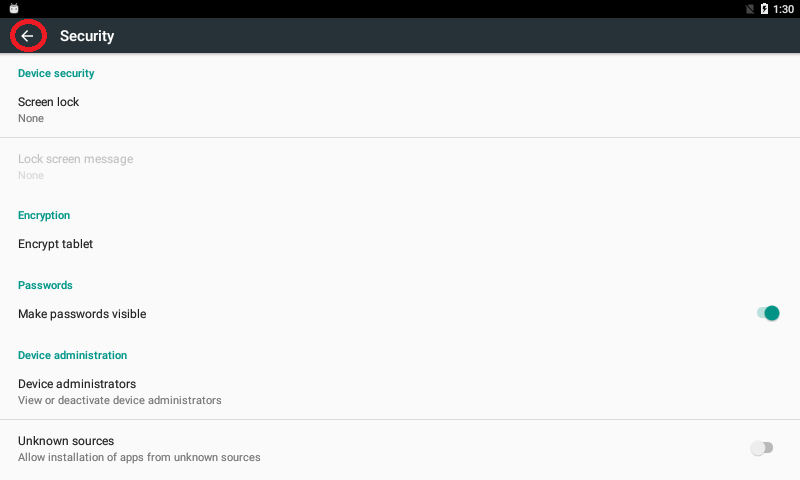
Arrow back to main Settings screen.
Step 12: Reboot
Now, reboot the ThermaTouch by cycling the power to the PDM. The screen lock has been disabled.
Step 13: (Optional step)
Use this procedure to get to the Android settings from the Time screen
Step 13.1: Time screen
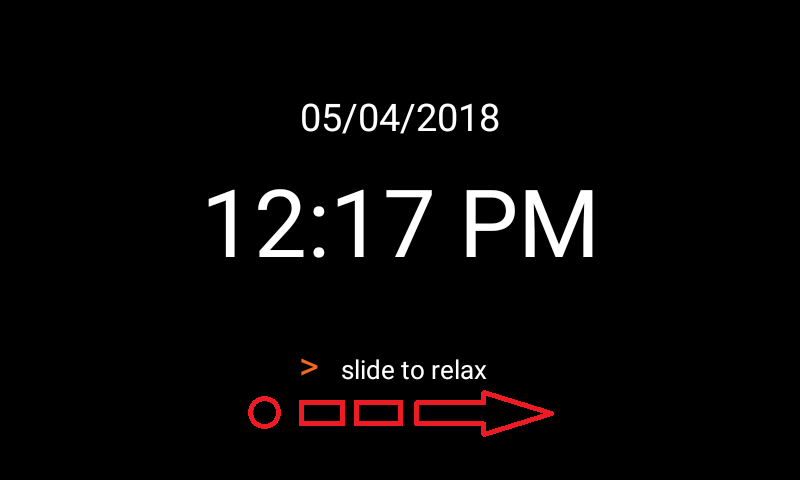
Slide the control
Step 13.2: User screen
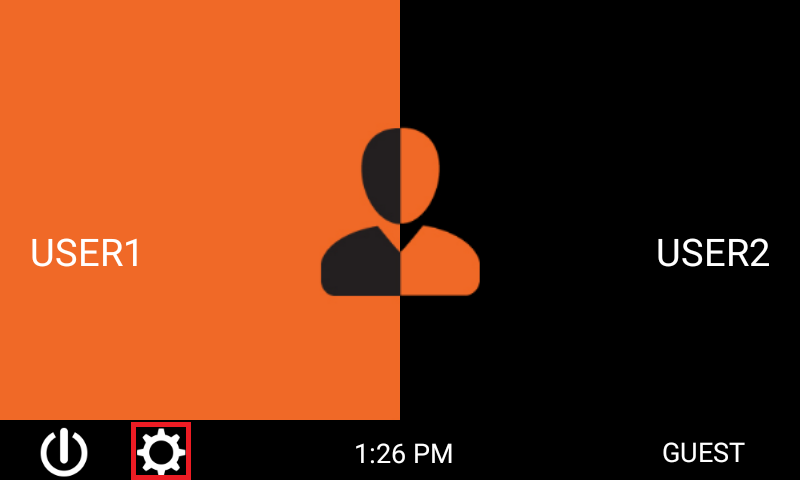
Touch the Settings icon
Step 13.3: Settings
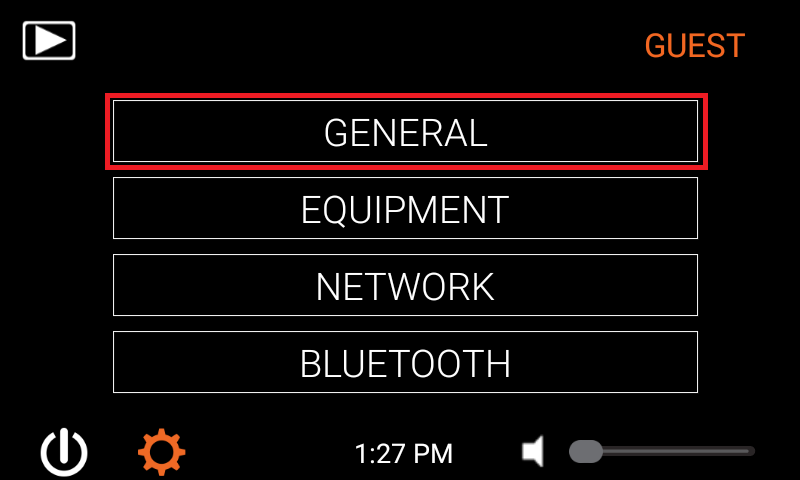
Touch General
Step 13.4: Settings
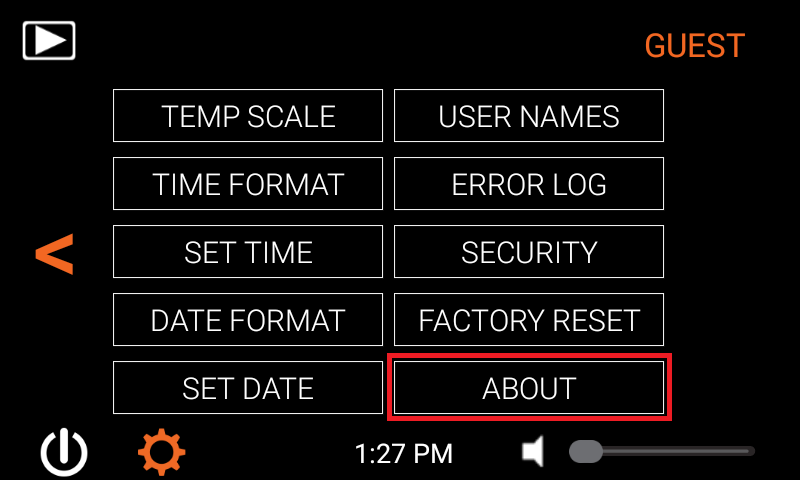
Touch About
Step 13.5: Settings
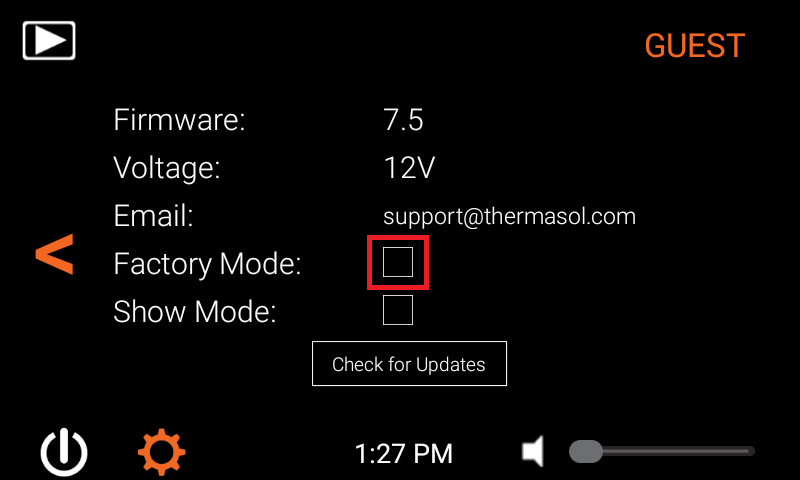
Touch the Factory mode box
Step 13.6: Settings
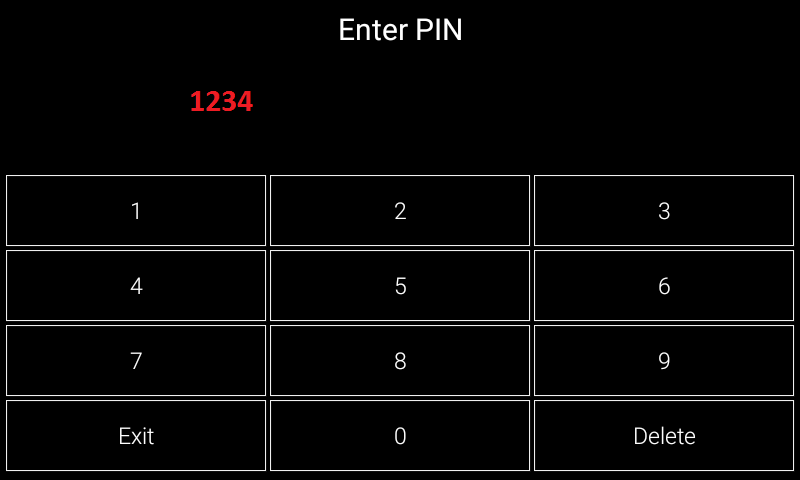
Enter PIN 1234
Step 13.7: Settings
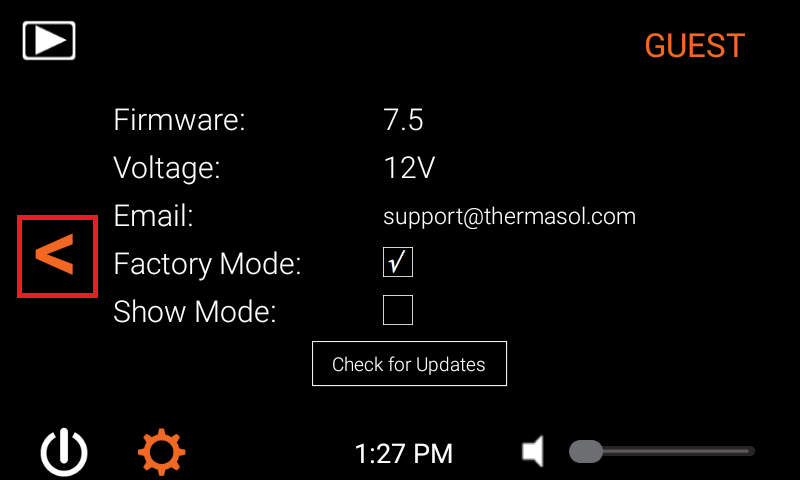
Arrow back
Step 13.8: Settings
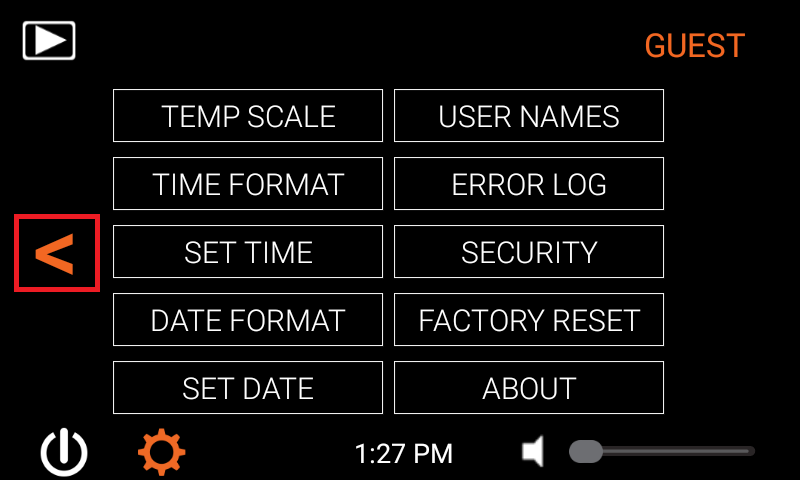
Arrow back again
Step 13.9: Settings
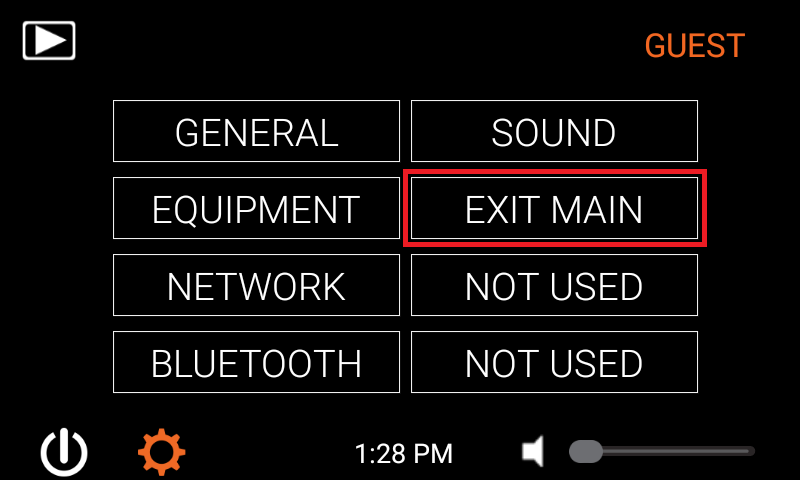
Touch Exit main
Now go to Step 3 above to change the Android settings
Comments
0 comments
Please sign in to leave a comment.